Snipe keeps passwords on your device. It does not sync them to Google. To bring over credentials you already saved in Chrome, Google Password Manager, or Brave, export a CSV from that browser, then import it into Snipe.
Security note: A password CSV is plain text. Save it only on your machine, import it into Snipe right away, then permanently delete the file (and empty the recycle bin). Do not email it, upload it to cloud drive, or leave it in Downloads.
Step 1a
Export from Google / Chrome
Use Chrome (or Edge Chromium with Google Password Manager) on the same profile that holds your passwords.
Open chrome://password-manager/settings in the address bar (or menu → Passwords and autofill → Google Password Manager → Settings).
Under Export passwords, choose Download file.
Confirm with your Windows PIN, password, or biometrics when asked.
Save the .csv somewhere local (for example the Desktop), not a synced cloud folder.
Step 1b
Export from Brave
Brave also uses a Chromium password manager with CSV export.
Open Brave and go to brave://password-manager/settings (or Settings → Passwords and autofill → Password Manager → Settings).
Under Export passwords, choose Download file.
Authenticate when prompted and save the CSV locally.
Step 2
Import into Snipe
In Snipe, open the local Password Manager. Passwords stay on this device; nothing is uploaded by default.
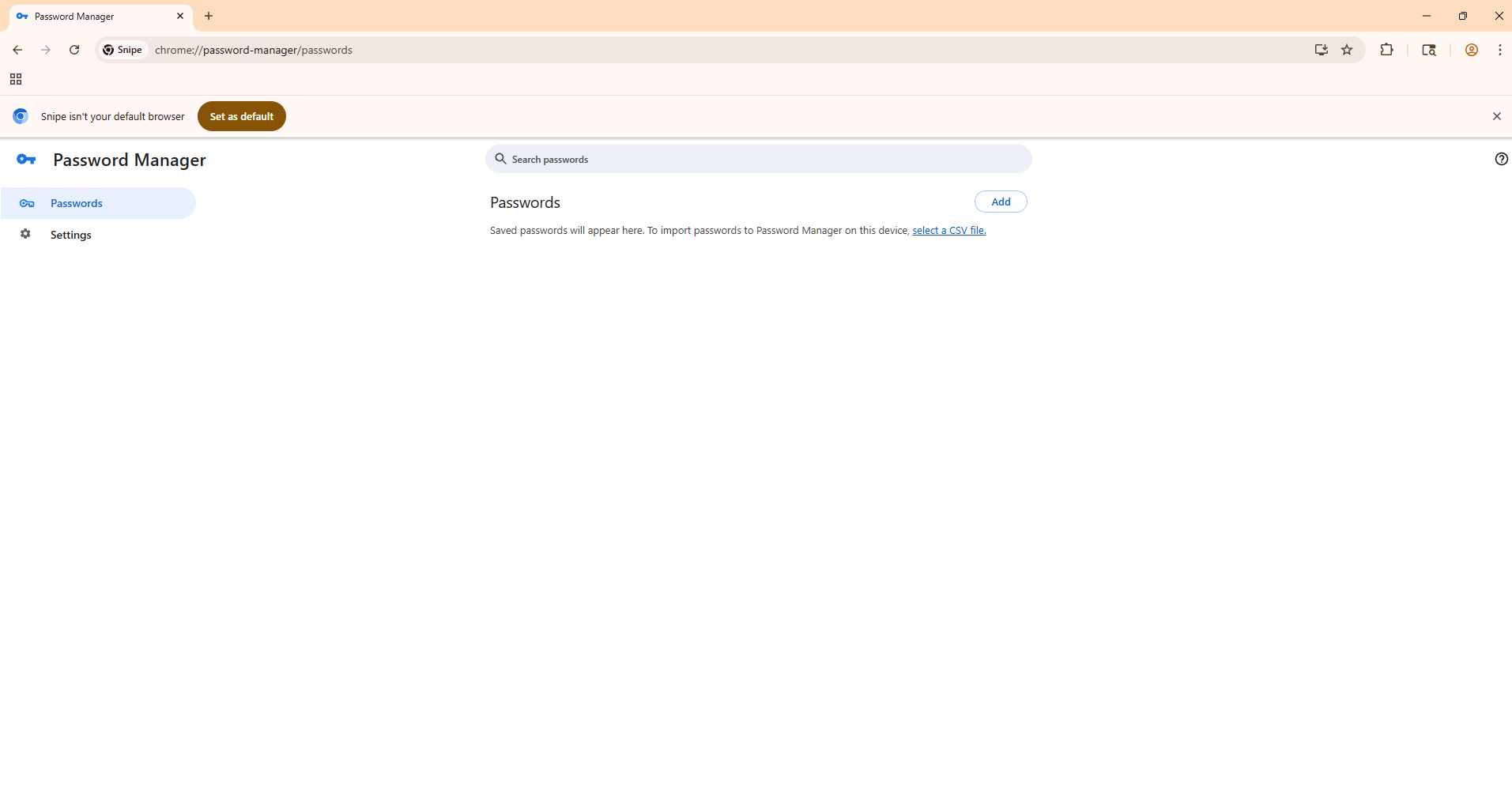
In Snipe, open chrome://password-manager/passwords.
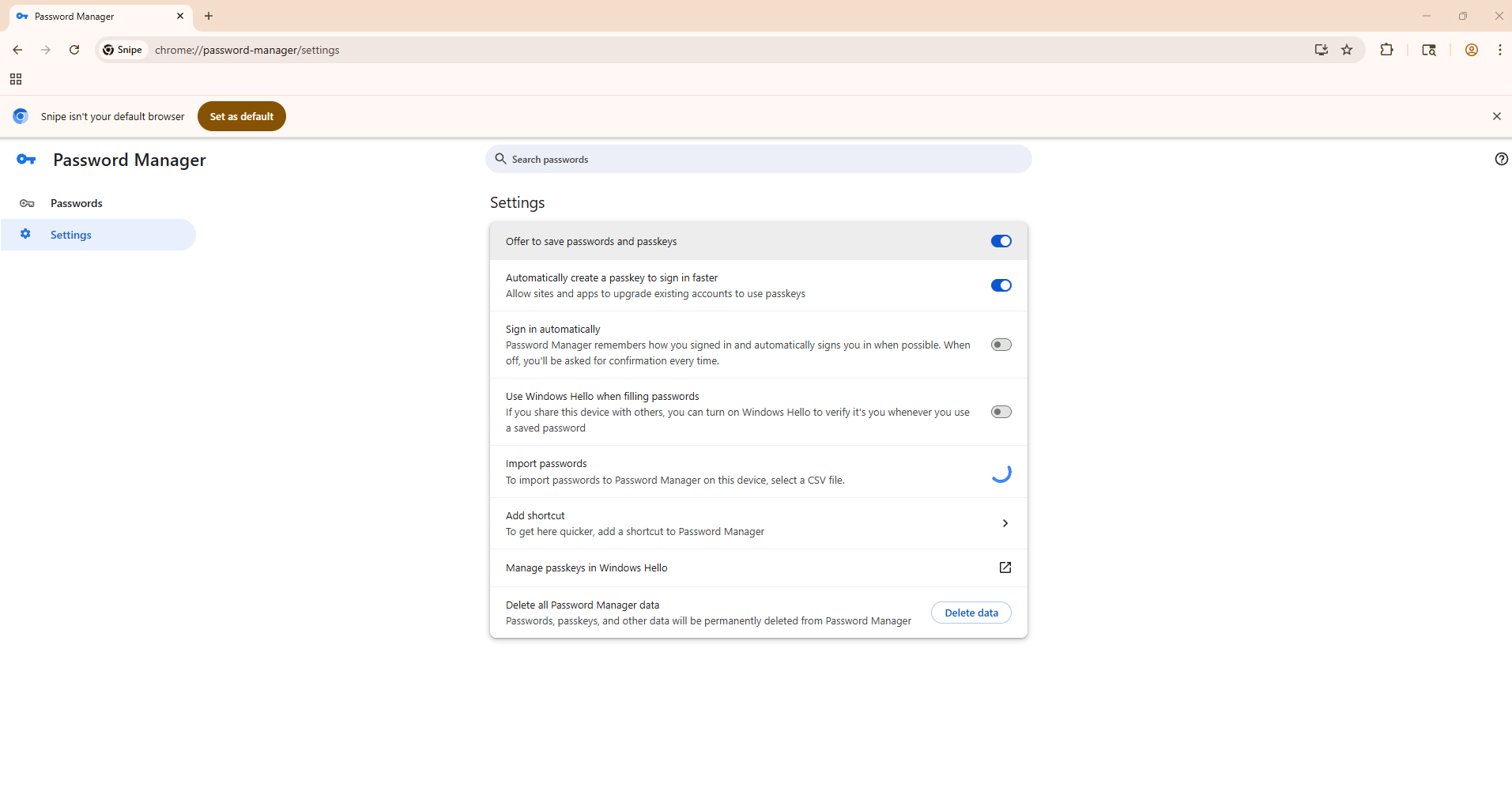
On an empty vault you will see: “To import passwords to Password Manager on this device, select a CSV file.” You can also open Settings in the left sidebar and use Import passwords.
Choose the CSV you exported from Google or Brave.
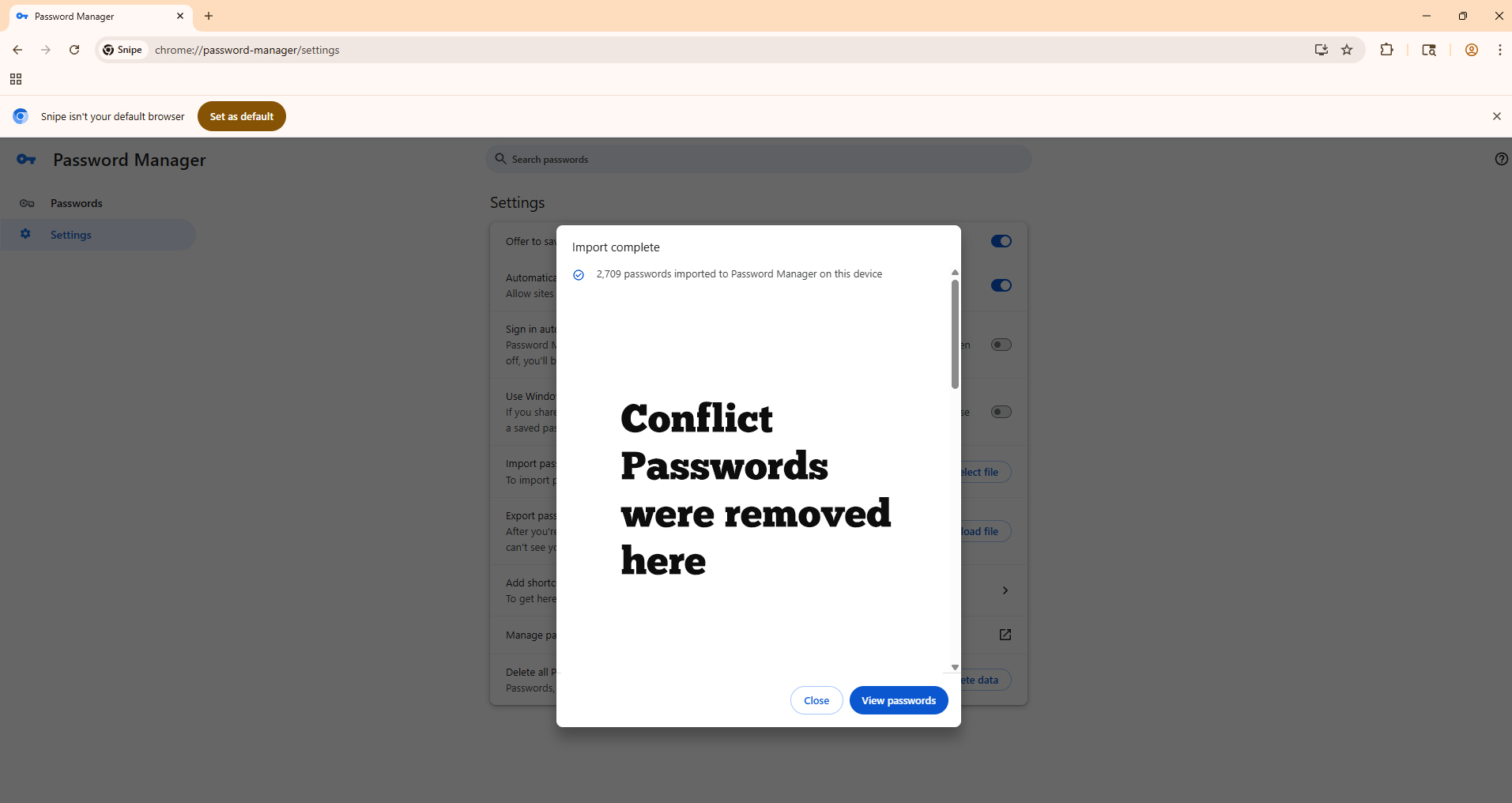
When import finishes, confirm the count, then click View passwords if you want to review them.
Delete the CSV from disk immediately.
Passwords page (chrome://password-manager/passwords): import by selecting a CSV file.Settings (chrome://password-manager/settings): Import passwords → select a CSV file.Import complete: passwords are stored in Snipe’s local Password Manager on this device.
After import
What you should know
Snipe’s Password Manager is local-first. Signing into a Google account inside Chrome will not push these passwords into Snipe, and Snipe will not upload them to Google cloud sync.
If some entries conflict or fail to import, check the import summary dialog, then add those sites manually or re-export a clean CSV from the source browser.