 Snipe
SnipeInstall · Chromebook-Fennel 14
Install on your Chromebook
You will work on the Chromebook in a few careful stages. Two of them can wipe data on the Chromebook itself: turning on Developer Mode, and later installing to internal storage. Neither step touches your Windows or Mac PC. Read each section before you commit.
Overview
Here is what gets erased, and when:
| When | What gets erased |
|---|---|
| Developer Mode (required once) | All ChromeOS local data on that Chromebook |
| Install to internal storage (optional later) | The whole internal disk - ChromeOS is replaced by SnipeOS |
In short:
- Flash a USB stick with balenaEtcher (this only wipes the stick).
- Enable Developer Mode on the Chromebook (this wipes ChromeOS local data - back up first).
- Allow USB boot with two short commands in ChromeOS.
- Boot the stick with Ctrl+U and land on the desktop (user
snipe/ passwordsnipe). - Optionally install to internal storage, set a new password, then reboot without the stick.
Step 1. Flash the USB
Use a 16 GB or larger USB stick. On any Windows, Mac, or Linux PC:
- Download the disk image (or the torrent if direct download is slow).
- Open balenaEtcher → Flash from file → select the image → select the USB stick → Flash.
- If Etcher warns about a missing partition table, continue. That warning is normal for this Chromebook image.
If you prefer the command line on Linux:
sudo dd if=snipebookos-kukui-fennel14-0.8.61.img of=/dev/sdX bs=4M status=progress conv=fsyncReplace /dev/sdX with the whole USB device (check with lsblk). Never point at a partition name like sdX1.
Step 2. Developer Mode (wipes the Chromebook)
You cannot boot SnipeOS until ChromeOS verification is turned off. Turning it off factory-resets the Chromebook. Back up anything you care about first. At the “OS verification is OFF” screen, do not press Space unless you want to leave Developer Mode (that wipes again).
- Hold Esc + Refresh, then tap Power to reach Recovery. Confirm the hardware ID starts with FENNEL14.
- Unplug the SnipeOS USB while you enable Developer Mode. Recovery will look for a ChromeOS recovery stick if a USB is plugged in.
- Press Ctrl+D, confirm, and wait through the wipe.
- When you see “OS verification is OFF”, press Ctrl+D once to boot stock ChromeOS so you can allow USB boot in the next step.
Step 3. Allow USB boot
ChromeOS needs two settings changed so Ctrl+U can boot your stick. The usual crosh terminal often blocks this - that failure is expected. Use the second console instead.
- Press Ctrl+Alt+Refresh (or F2) to open the second console. Log in as
root. - Type these two lines exactly (spelling and spaces matter - do not glue words with underscores):
crossystem dev_boot_signed_only=0
sudo crossystem dev_boot_usb=1
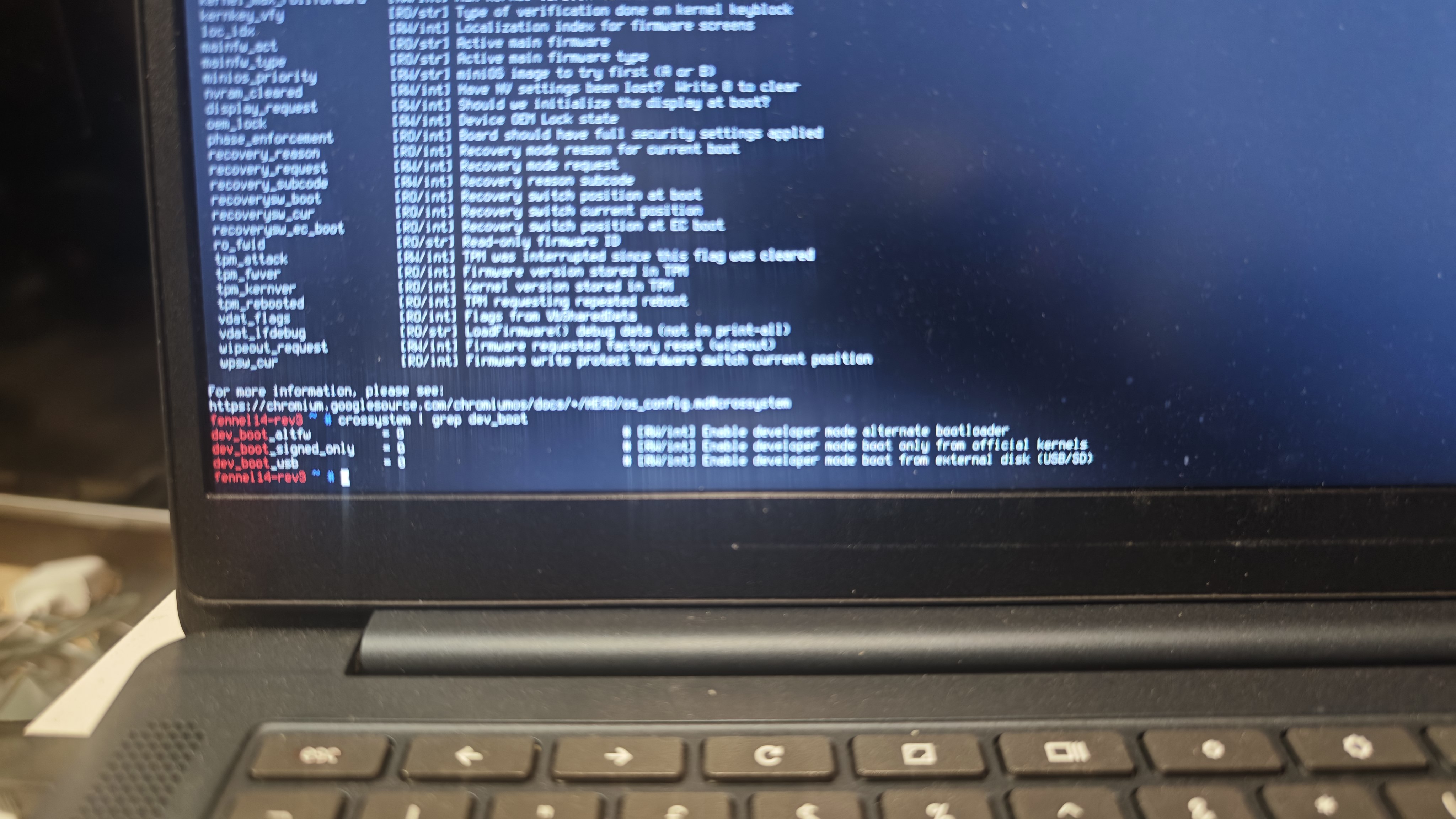
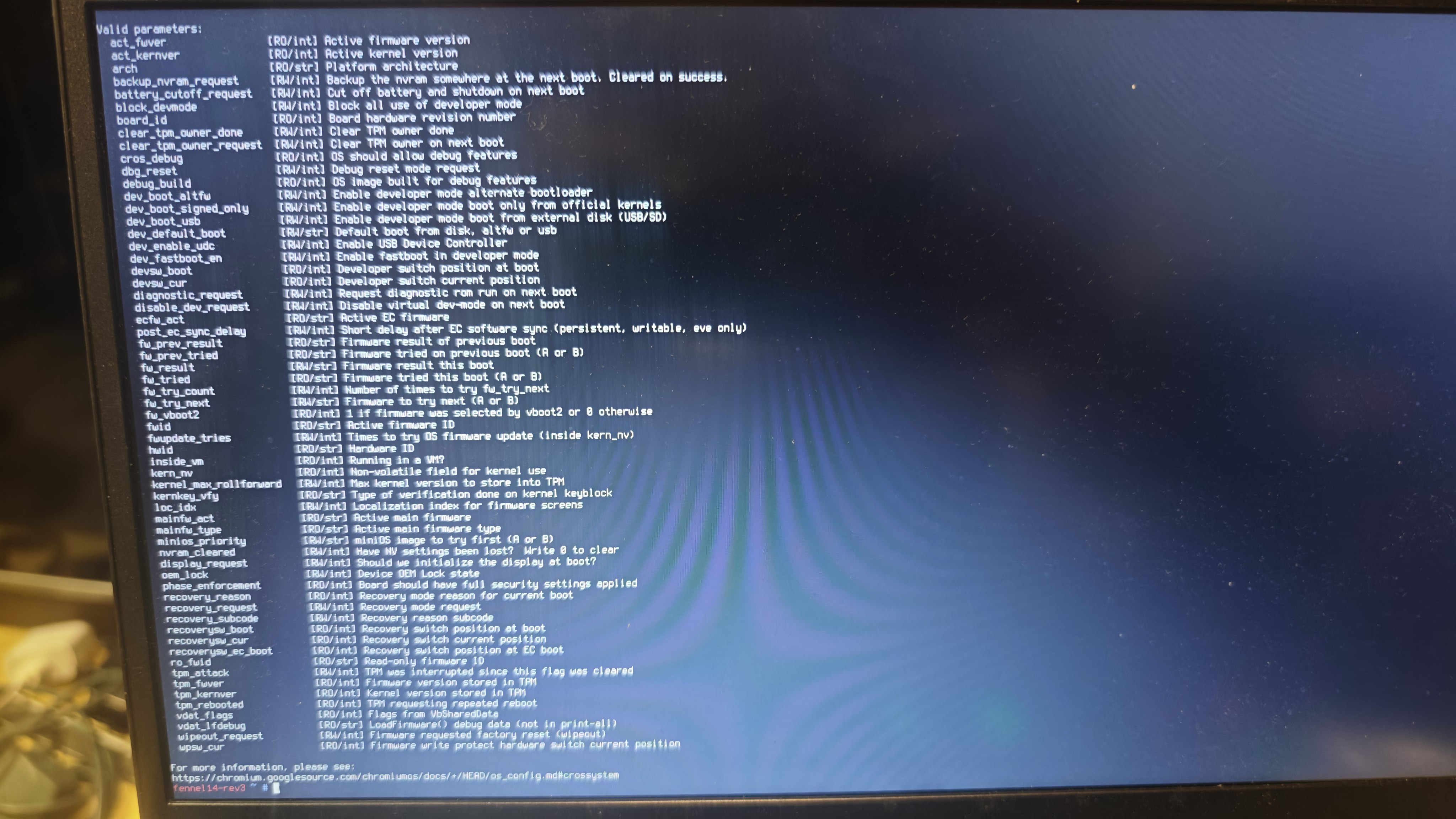
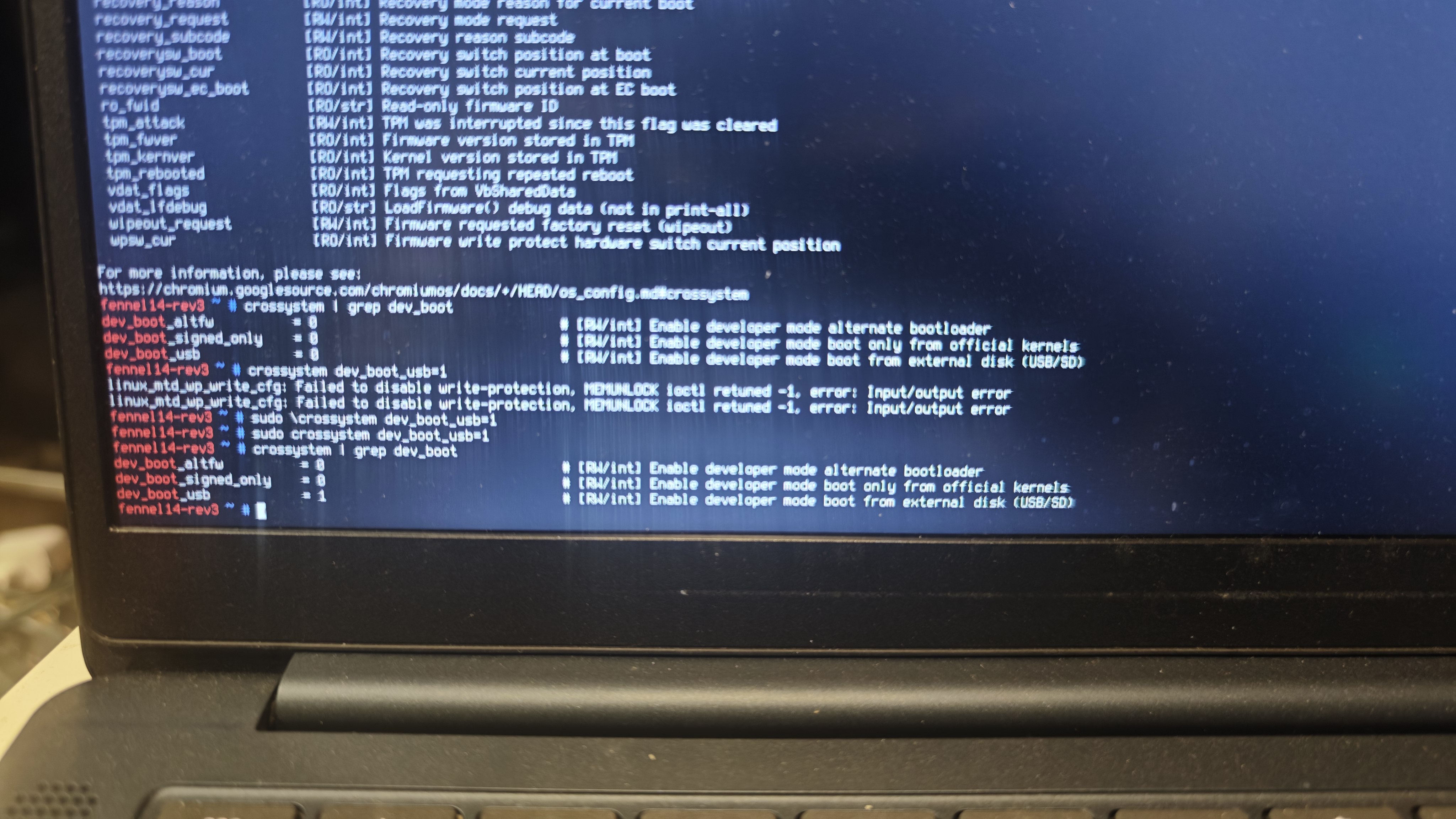
To double-check, run crossystem | grep dev_boot. You want dev_boot_usb = 1 and dev_boot_signed_only = 0.
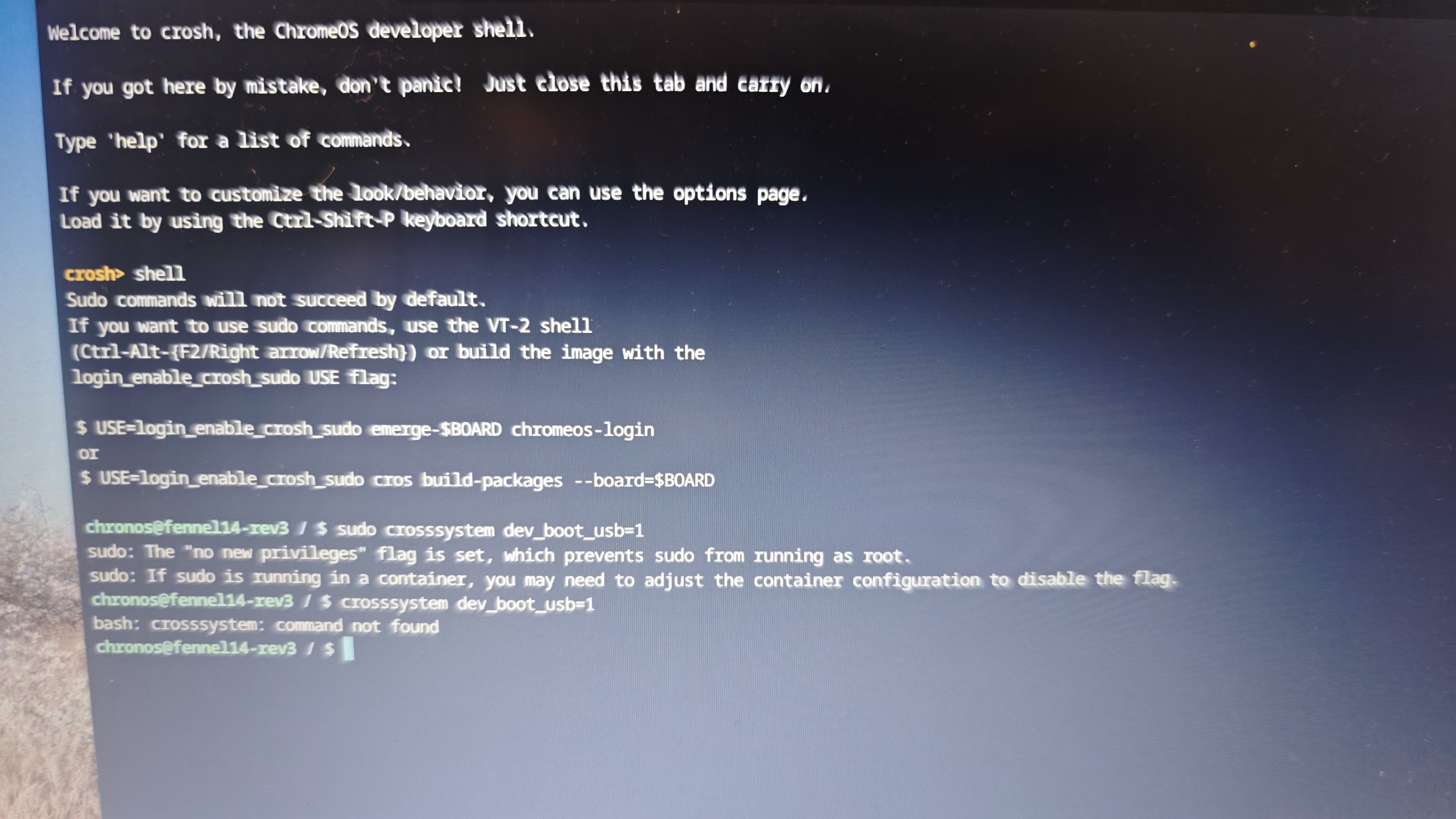
Watch the spelling
Underscores glued into the command name make the shell treat the whole line as one unknown program. There must be a space after crossystem, and the flag names use underscores only inside the flag - not after the command.
The photo on the right is what a mistyped attempt looks like. Fix the typing, then run the two correct lines from the step above.
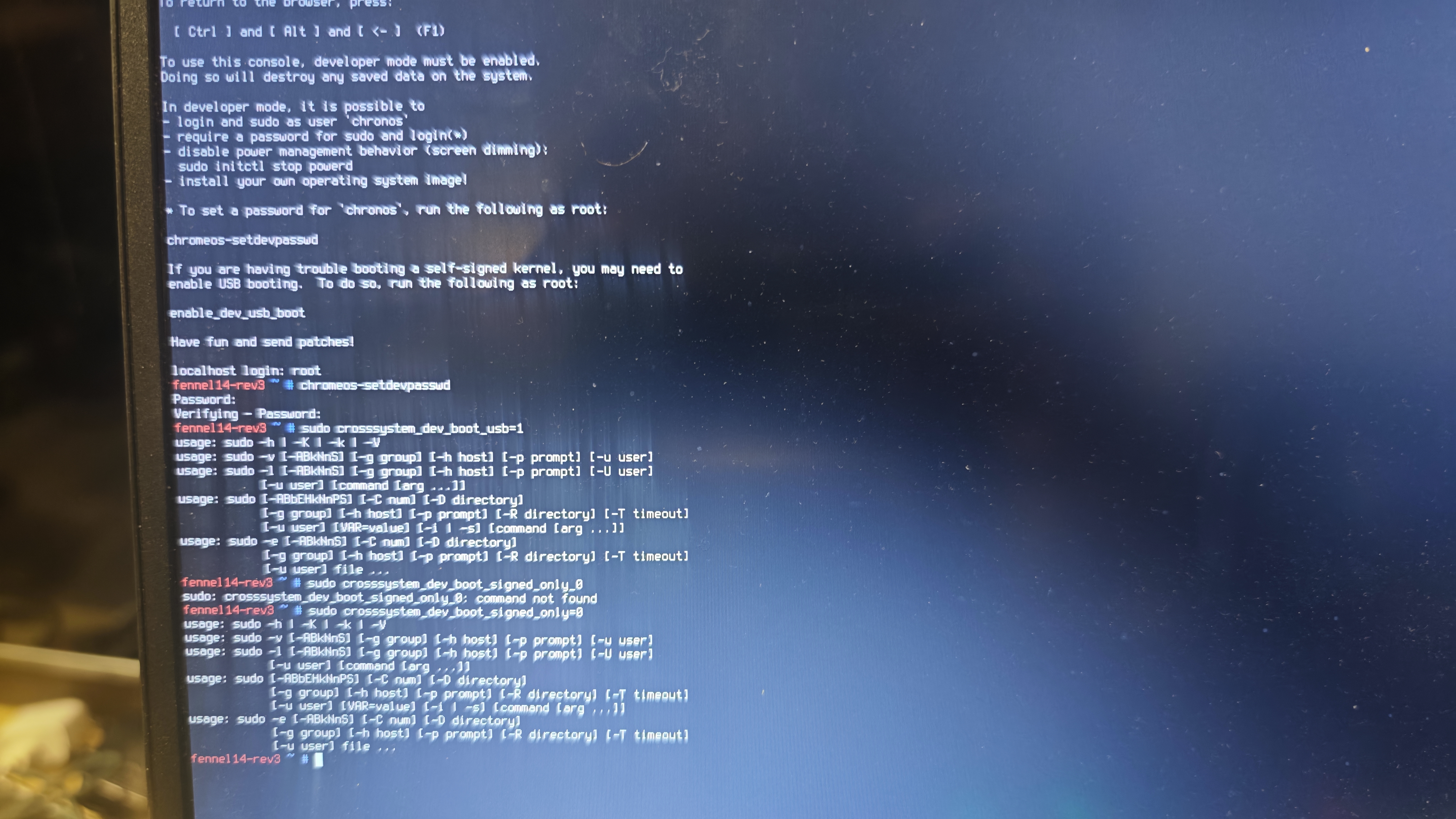
Before and after
Before you change anything, USB boot is usually off. After the two commands succeed, dev_boot_usb should read 1.
Step 4. Boot from USB (Ctrl+U)
- Insert the stick and reboot.
- At the developer / Unverified OS screen, press Ctrl+U (not Ctrl+D - Ctrl+D boots stock ChromeOS).
- The stick signs you in automatically as
snipewith passwordsnipeand opens the desktop.
If boot hangs waiting for the disk on USB, unplug the stick and plug it back in once. That quirk shows up on some ports and hubs.
First boot can take a while
The first boot from a cheap USB 2.0 stick is slow. Do not power-cycle. Black screens are normal: the splash can sit for a few minutes, then more black or cursor-only time, and the full desktop may take ten minutes or more in total. After you install to internal storage, boots are much faster.
Step 5. Install to internal storage (optional)
From the USB desktop, open Install SnipeOS for Chromebook. You will confirm wiping the internal disk, choose a new password for user snipe, wait while the system copies (often about 15-20 minutes), then reboot and remove the USB.
The installer uses most of the disk for your system and leaves a sensible swap area so everyday apps and Steam stay usable on 4 GB of memory. Autologin continues after install; your password still matters for admin tasks and the lock screen.
If you ever want ChromeOS back, use Google’s official FENNEL14 recovery image. Making a recovery stick before you install is a good idea.