 Snipe
SnipeTroubleshooting · Chromebook-Fennel 14
Common issues
Problems that show up on this Chromebook channel first. If you are on the PC ISO instead, use the 64-Bit troubleshooting page.
Ctrl+U does nothing / crosh blocks sudo
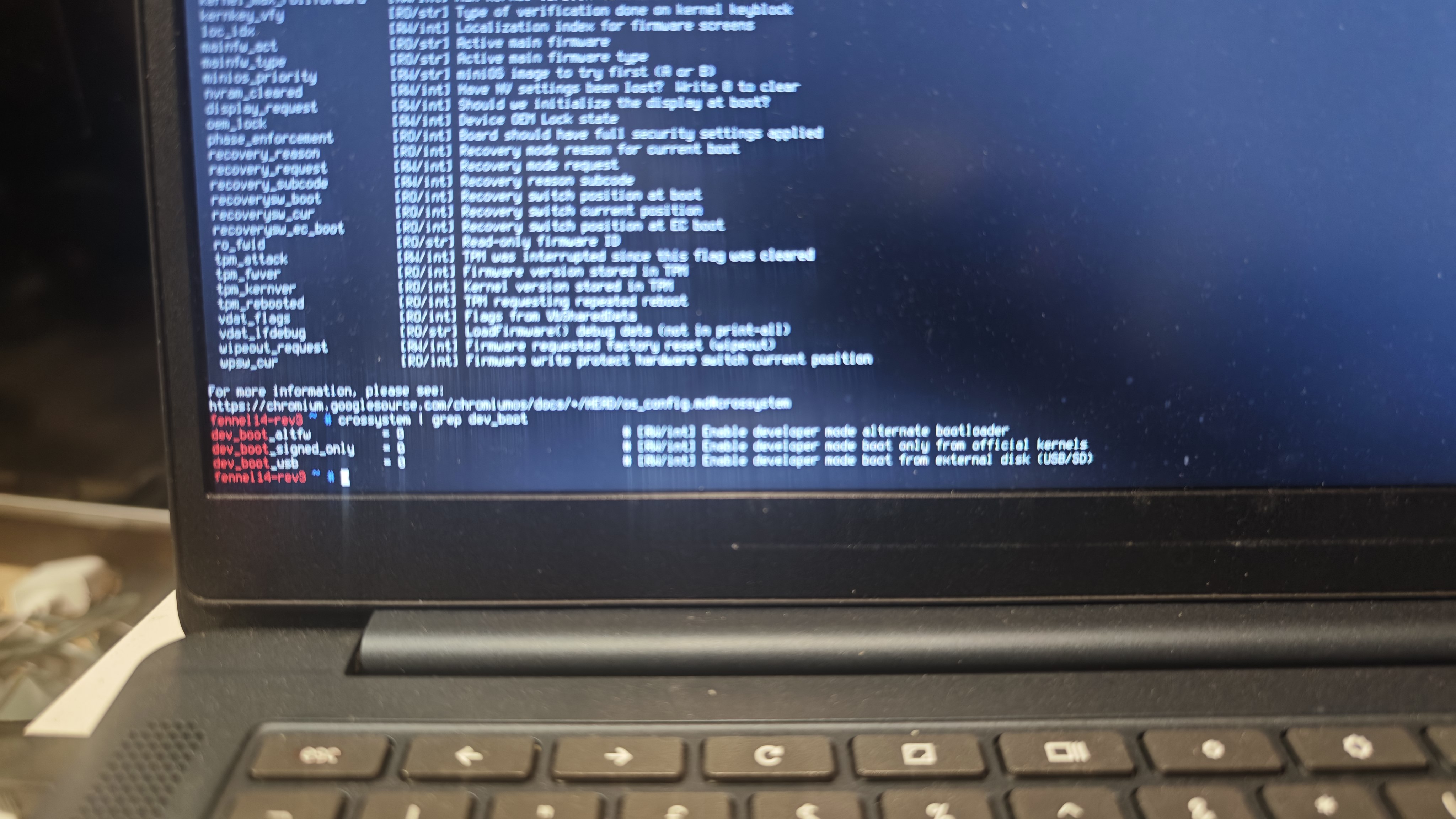
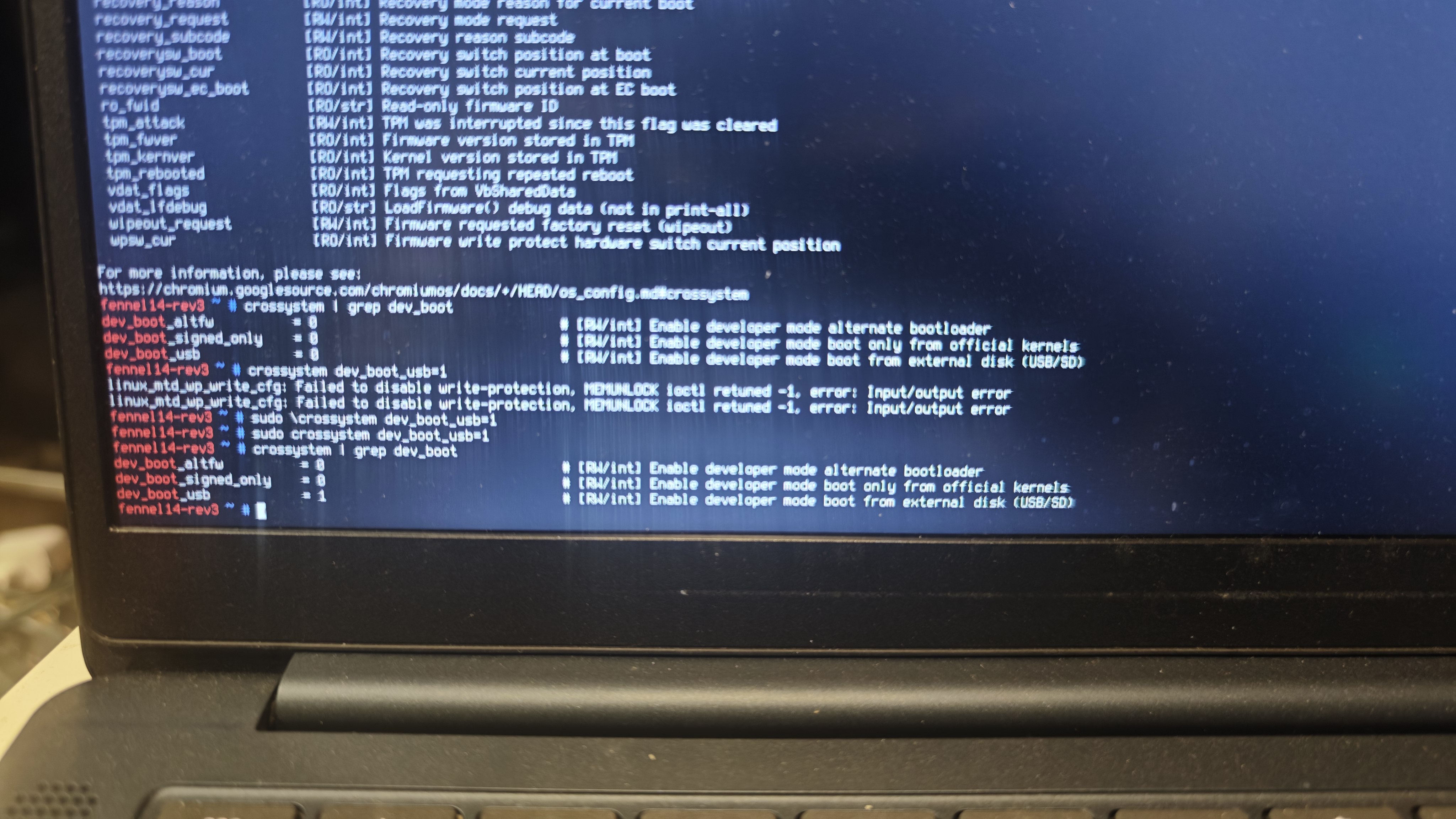
Make sure Developer Mode is on, then allow USB boot with the two commands in the install guide. The usual crosh terminal often blocks sudo - that is expected. Open the second console with Ctrl+Alt+Refresh instead. If a command complains about write protection, use the sudo form shown in the guide.
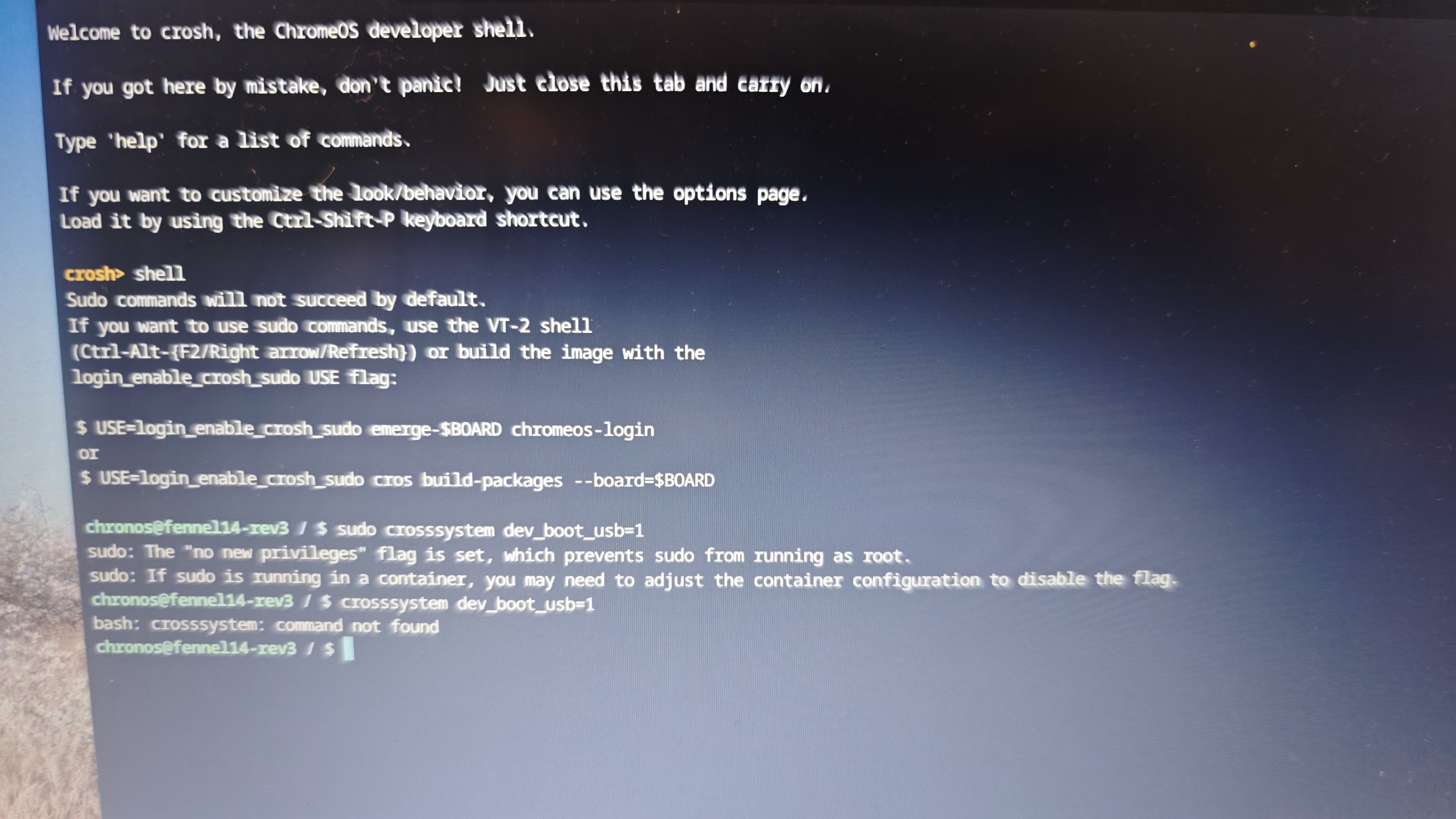
Commands fail with “command not found”
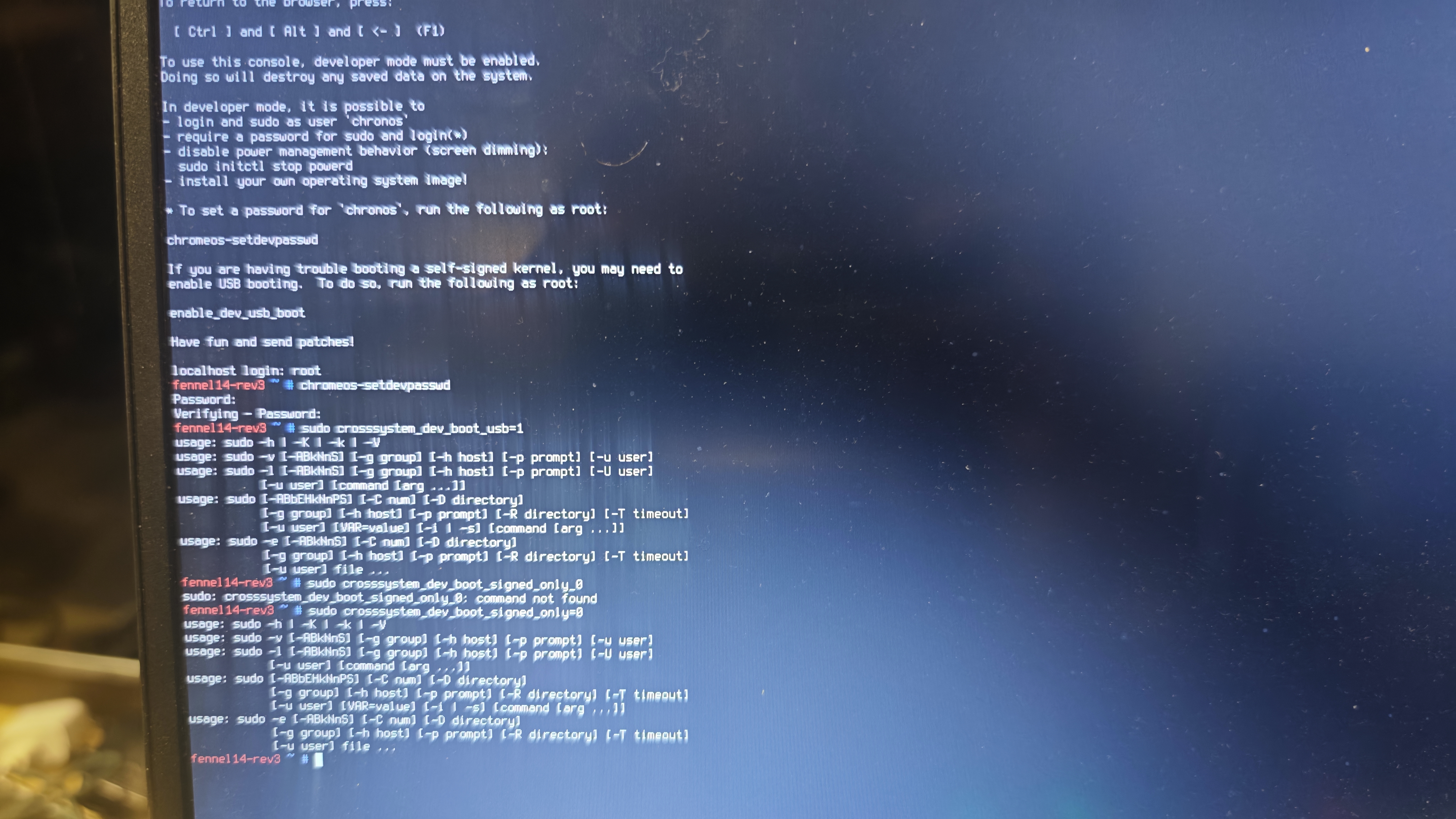
Almost always a typing error: a space missing after crossystem, or underscores glued to the command name. Compare with the photo, then retry the two exact lines from the install guide. When it works, dev_boot_usb reads 1.
USB boot hangs waiting for the disk
After you press Ctrl+U, unplug the stick once and plug it back in. That often clears a hang on some ports and USB hubs.
First boot takes forever
The first boot from a slow USB 2.0 stick can sit on the splash and black screens for many minutes. Wait it out; do not power-cycle. After you install to internal storage, boots are fast.
Etcher warns about a missing partition table
Continue. This Chromebook image is not a normal PC ISO, so flash tools often look confused. The warning is expected.
Dropbox opened a browser by itself
Use version 0.8.61 or newer. That build stops Dropbox from launching itself when Wi‑Fi comes up. Open Dropbox from the menu when you want it; it will ask before starting. If you later want it to start at login after you have linked your account, run:
sudo snipe-fix-cloud-autostart --allow-user snipeSpreadsheets or documents open in the wrong app
Restore the default file associations:
sudo snipe-fix-mime-defaultsSteam will not start / illegal instruction
Use Install Steam from the menu. That is the supported path on this Chromebook. Do not chase a separate “ARM Steam” build for this machine.